# 13. Customers- Admin Panel
### 13. Customers
The "Customers" section serves as a central hub for managing customer-related data and orders. It offers various features to efficiently search for customers, view their profiles, inspect order histories, download order bills, and toggle customer account statuses. This section is designed to streamline customer management and enhance the customer experience within the application.
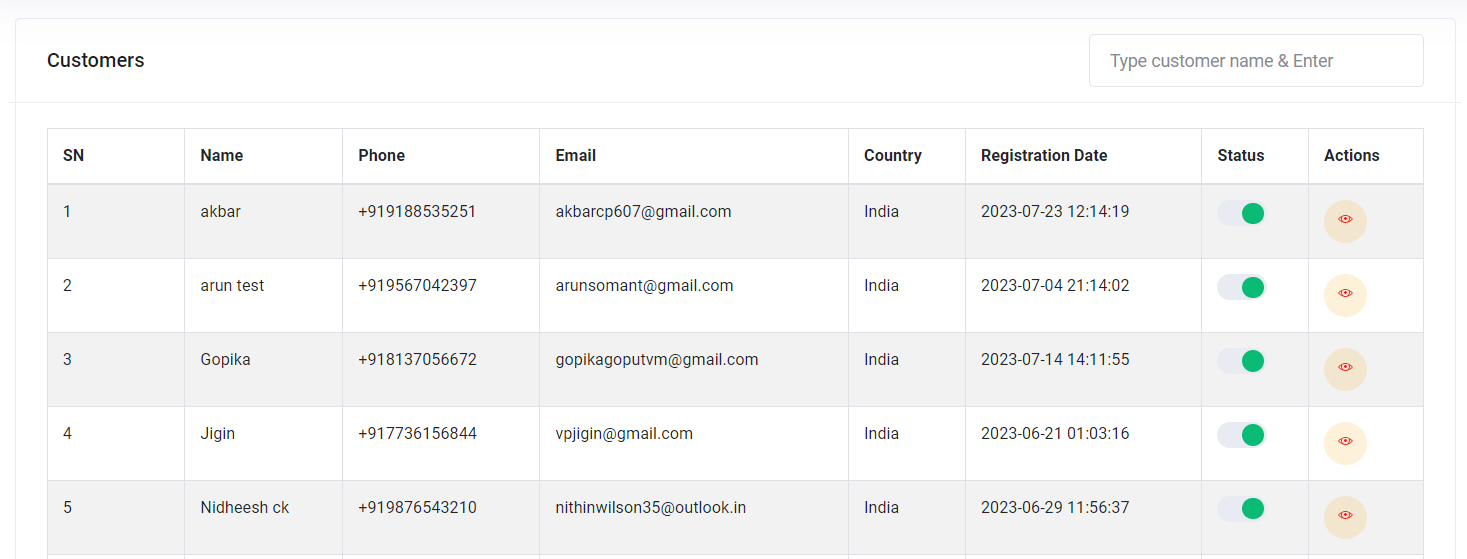
Customer listing
#### **13.1 Search Customers**
In the "Search Customers" sub-section, users can efficiently search for registered customers based on criteria like name, mobile number, or email. The search feature simplifies customer lookup and management.
#### **13.2 View Customer**
In the "View Customer" sub-section, administrators can access detailed customer profiles. It provides essential customer information, including account details (such as name, email, phone, and addresses), order history (order code, status, payment details, etc.), and additional customer statistics (total orders, ordered amount, cart items, reviews, wishlist items).
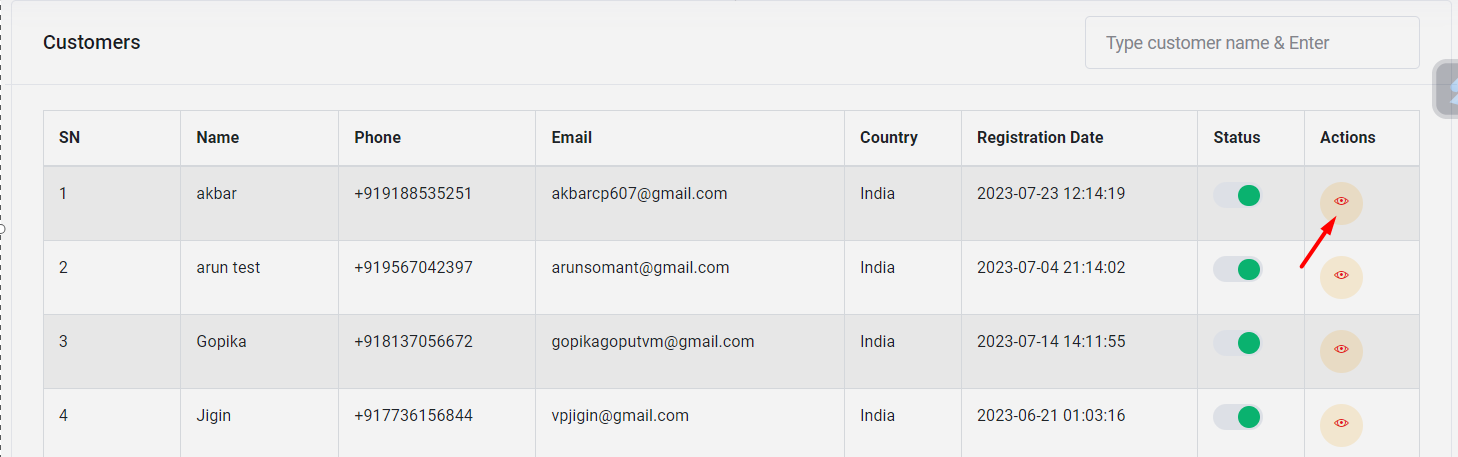
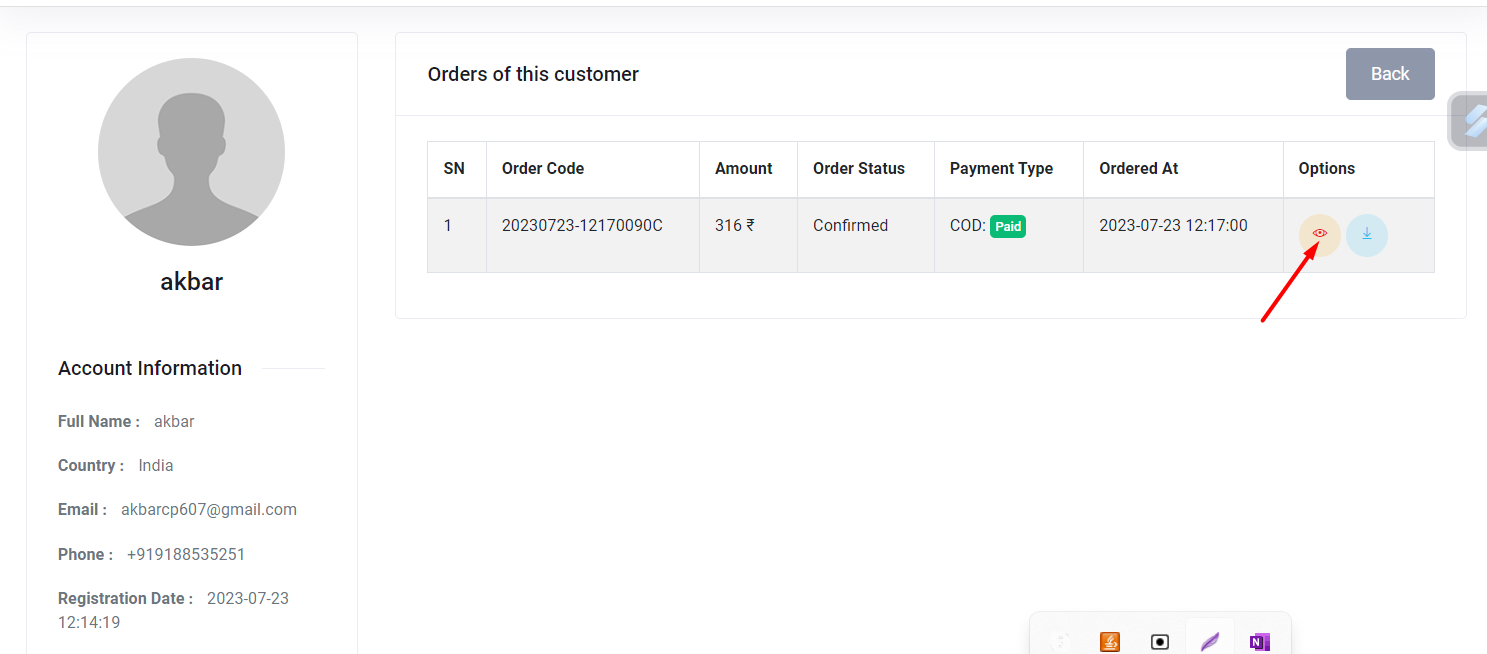
View Customer Option
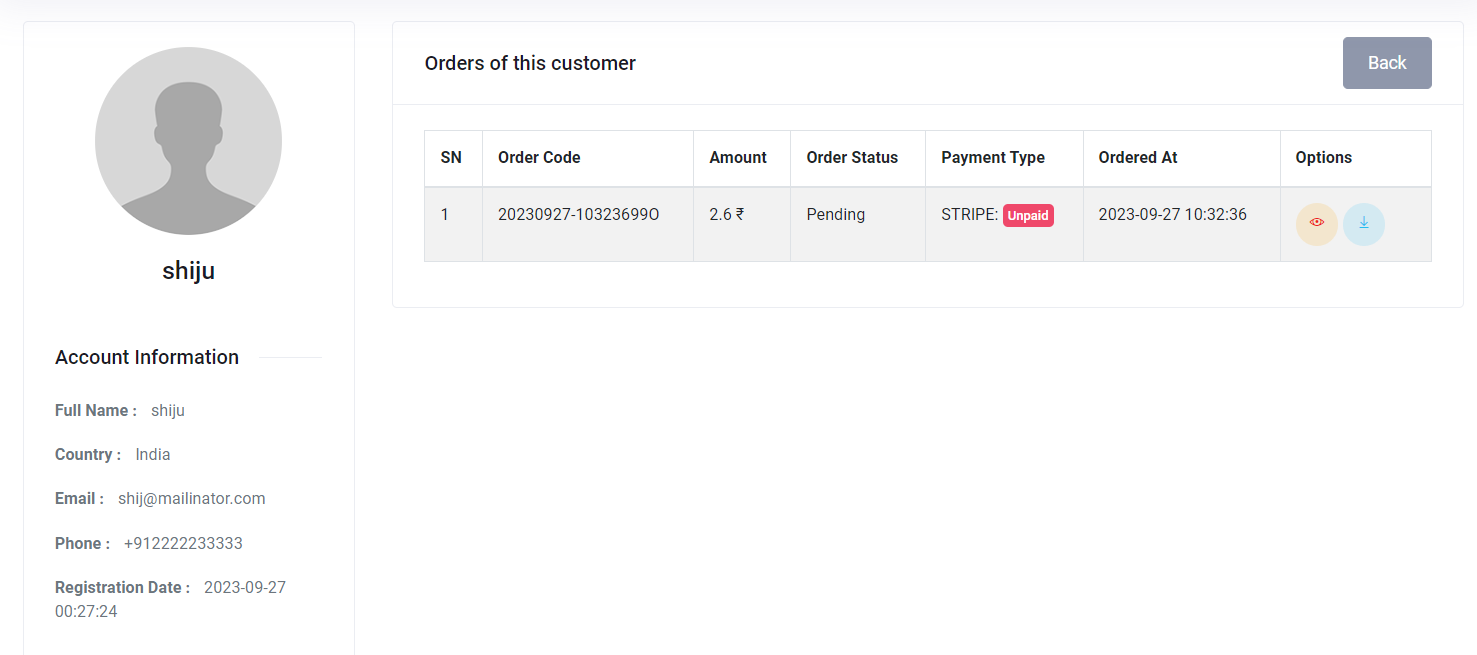
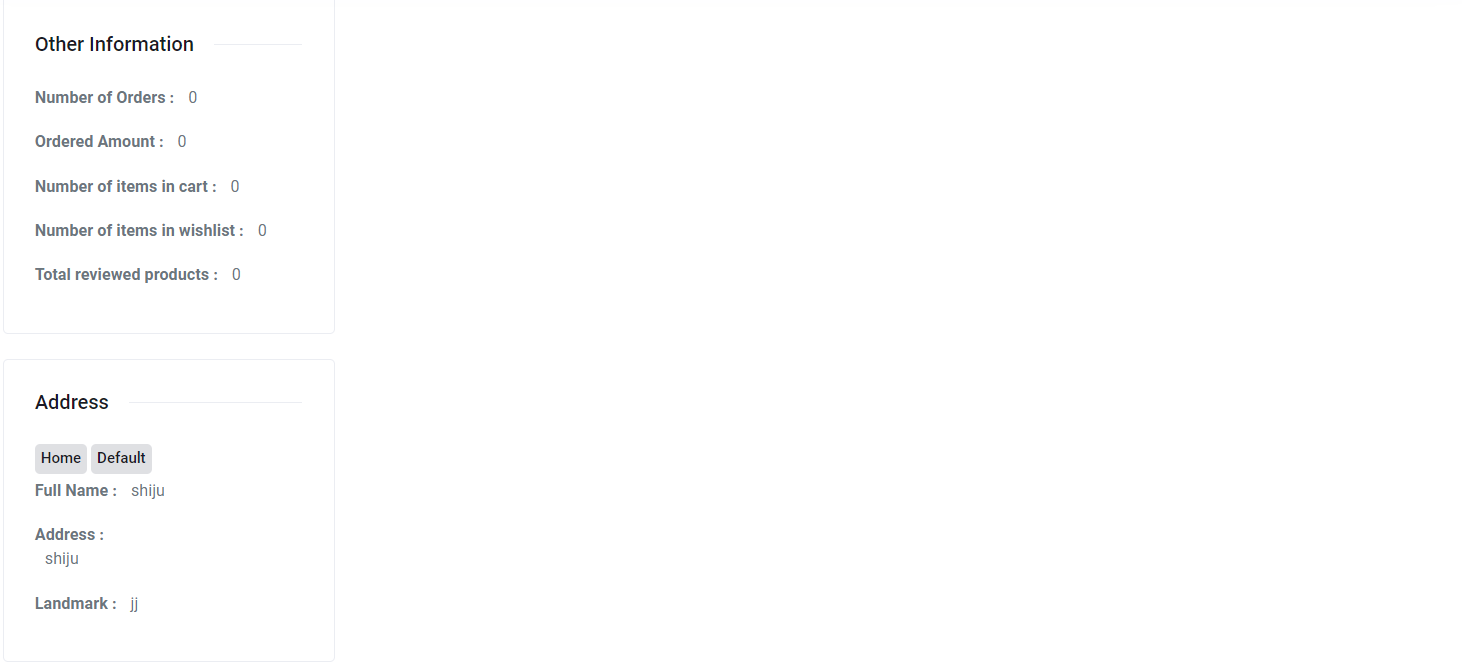
View Customer interface
Upon selecting a customer from the list, administrators are directed to the "View Customer" page, which provides comprehensive information about the selected customer:
**Account Information:**
* **Full Name**: Displays the customer's full name.
* **Country**: Specifies the customer's country of residence.
* **Email**: Shows the customer's email address.
* **Phone**: Lists the customer's phone number.
* **Registration Date**: Displays the date and time when the customer registered their account.
**Other Information:**
* **Number of Orders**: Indicates the total number of orders placed by the customer.
* **Ordered Amount**: Reflects the total monetary amount spent by the customer through their orders.
* **Number of items in cart**: Specifies the quantity of items currently in the customer's shopping cart.
* **Number of items in wishlist**: Highlights the total number of items added to the customer's wishlist.
* **Total reviewed products**: Displays the count of products reviewed by the customer.
**Address:**
* **Home Default**: This section includes the customer's address details.
* **Full Name**: Lists the full name associated with this address, which is "akbar."
* **Address**: Provides the customer's address as "mybadress."
* **Landmark**: Specifies any landmarks associated with the address, described as "landmark."
**Orders of this Customer:** This section displays the customer's order history, including the following columns:
* **SN**: Serial number for each order.
* **Order Code**: A unique code associated with each order.
* **Amount**: The total order amount in the customer's local currency.
* **Order Status**: The status of the order.
* **Payment Type**: Specifies the payment method used for the order(ONLINE or COD).
* **Ordered At**: The date and time when the order was placed.
* **Options**: Additional option to view the order details or download its invoice.
#### **13.2.1 View Order**
Within the "View Customer" sub-section, administrators can delve into the order history of the selected customer. This view offers insights into the customer's order details, including order code, status, payment type, order date, and the ability to view more information or download order bills.
View Order Option
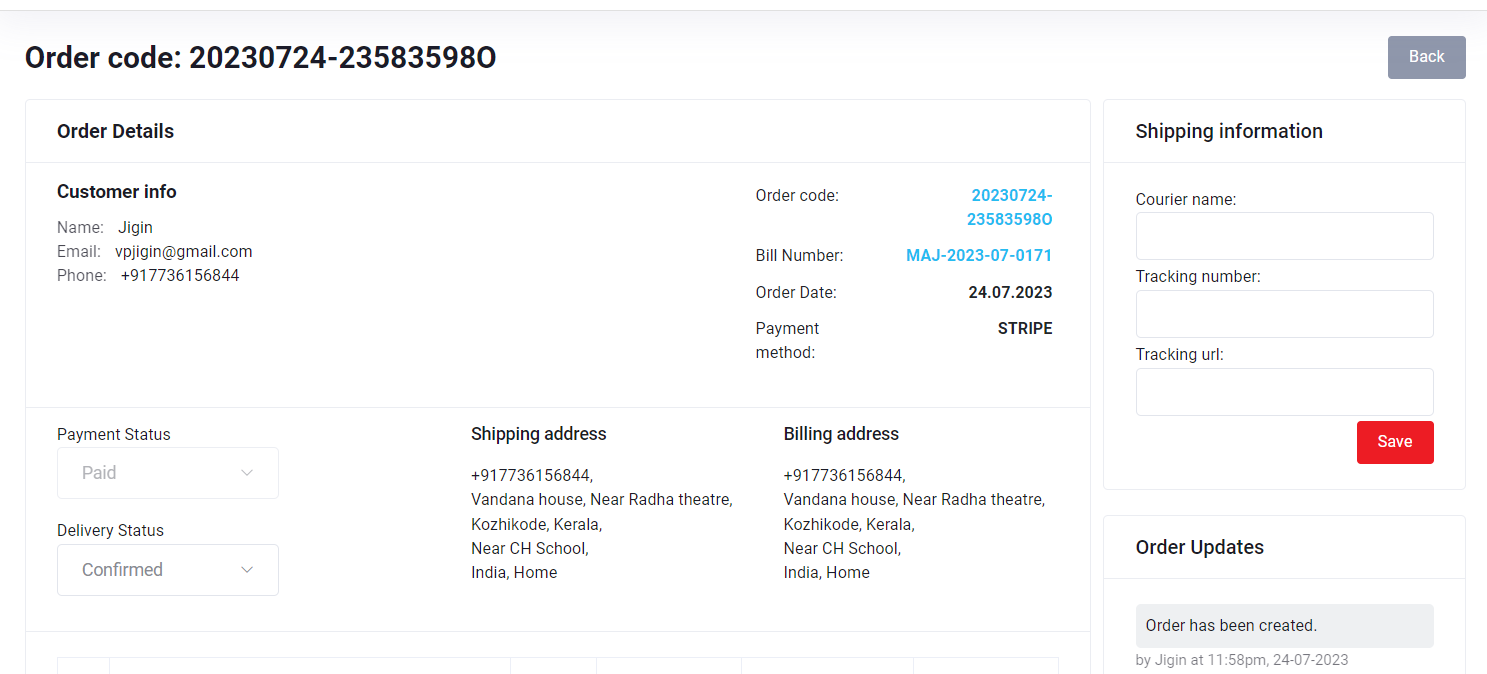
View order interface
Upon selecting an order from the customer's order history, administrators are directed to the "View Order" page, which provides comprehensive information about the selected order:
**Order Details:**
* **Order code**: Displays a unique code associated with the order.
* **Customer info**: Provides customer information related to the order.
* **Name**: Lists the customer's name.
* **Email**: Shows the customer's email address.
* **Phone**: Specifies the customer's phone number.
* **Order code**: Reiterates the unique order code.
* **Bill Number**: Indicates the bill number.
* **Order Date**: Displays the date of the order.
* **Payment method**: Specifies the payment method used for the order(COD or ONLINE).
* **Payment Status:**
The "Payment Status" section is an essential part of order processing, indicating the payment status for each order. It serves two primary purposes:
* For Cash on Delivery (COD) orders, the payment status remains "unpaid." This reflects that payment will be collected upon the delivery of the products.
* For online payments, the payment status is automatically marked as "paid" once the payment is successfully processed. This status change is automated and irreversible. Once an online payment is marked as "paid," it cannot be changed to "unpaid."
* **Delivery Status:**
The "Delivery Status" section tracks the progress of an order as it moves through various stages of processing. It includes the following statuses:
* **Pending**: This status is assigned when an order is initially placed and awaiting further processing.
* **Confirmed**: Orders are automatically set to "Confirmed" for Cash on Delivery (COD) once the order is placed. For online payments, the status is automatically updated to "Confirmed" upon successful payment processing.
* **Packed**: This status signifies that the ordered items have been packed and prepared for shipment.
* **Shipped**: Orders marked as "Shipped" have left the fulfillment center and are in transit to the delivery address.
* **Delivered**: This status is assigned once the products have been successfully delivered to the customer.
* **Cancelled**: If an order is canceled by the customer or for any other valid reason, it is marked as "Cancelled."
**Shipping Address:**
* Displays the shipping address information, including the phone number, address, landmark, country, and the type of address (Home or office).
**Billing Address:**
* Displays the billing address information, including the phone number, address, landmark, country, and the type of address (Home or office).
**Order Products:** This section lists the products included in the order, with the following columns:
* **SN**: Serial number for each product.
* **Product**: Describes the product details.
* **Qty**: Specifies the quantity of the product ordered.
* **MRP**: Lists the maximum retail price for the product.
* **Offer Price**: Displays the offer price for the product.
* **Total**: Indicates the total cost for each product.
**Total Amount**: Specifies the overall total amount for the order.
**Taxable Value**: Specifies the taxable value.
**Total Tax**: Lists the total tax amount.
**GST (percentage)**: Displays the amount of GST "
**Shipping**: Specifies the shipping cost.
**Coupon Discount (percentage)**: Indicates that there is no coupon discount applied.
**Grand Total**: Displays the grand total amount for the order.
**Shipping Information:**
* Specifies the courier name.
* Provides the tracking number.
* Includes a tracking URL, which directs users to track their package.
**Order Updates:** This section tracks order updates.
**Payment Log**
The "Payment Log" section displays information related to the payment transaction associated with the order. This information is particularly important for administrators to track and verify successful payments. The following details are provided:
* **Gateway**: Specifies the payment gateway used for the transaction. For example "Stripe."
* **Status**: Indicates the status of the payment transaction, For example if it is marked as "Succeeded," confirming that the payment was successfully processed.
* **Amount**: Displays the total amount of the payment.
* **Transaction Id**: Provides a unique identifier for the payment transaction.
#### **13.2.2 View and Download Order Bill**
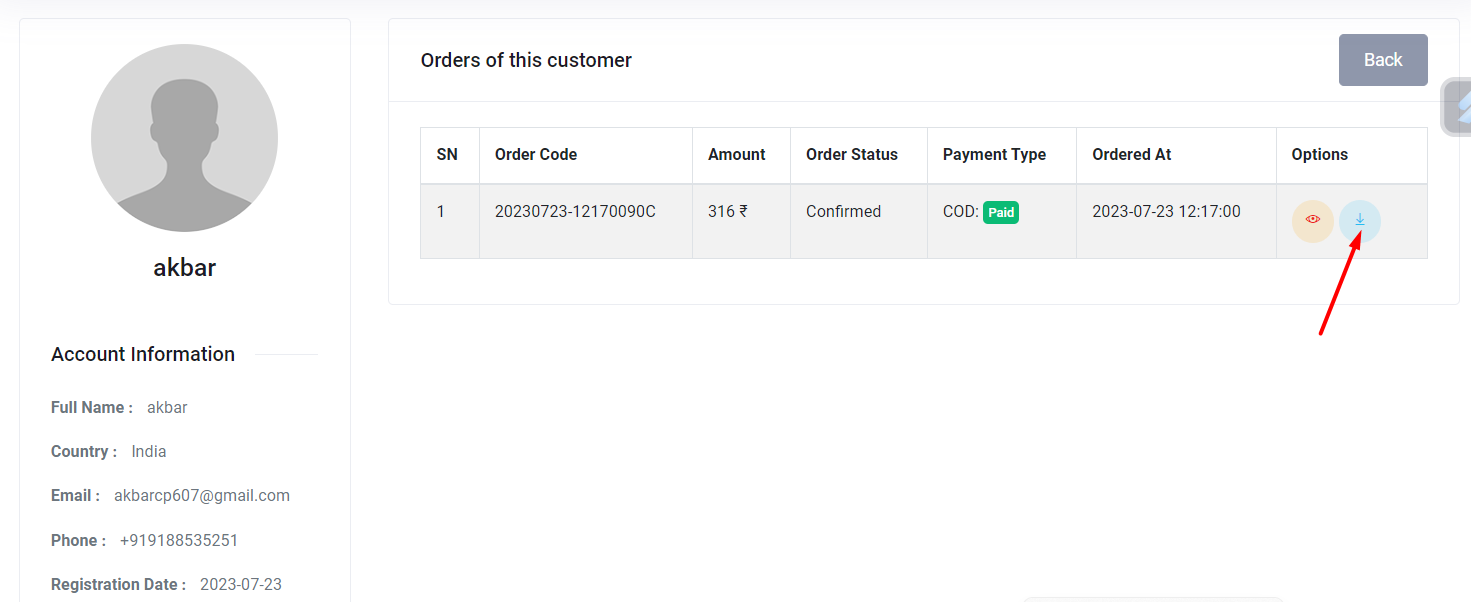
The "View Customer" sub-section allows administrators to view and download order bills for the customer's orders. This feature enhances order-related document accessibility and management.
Download Option
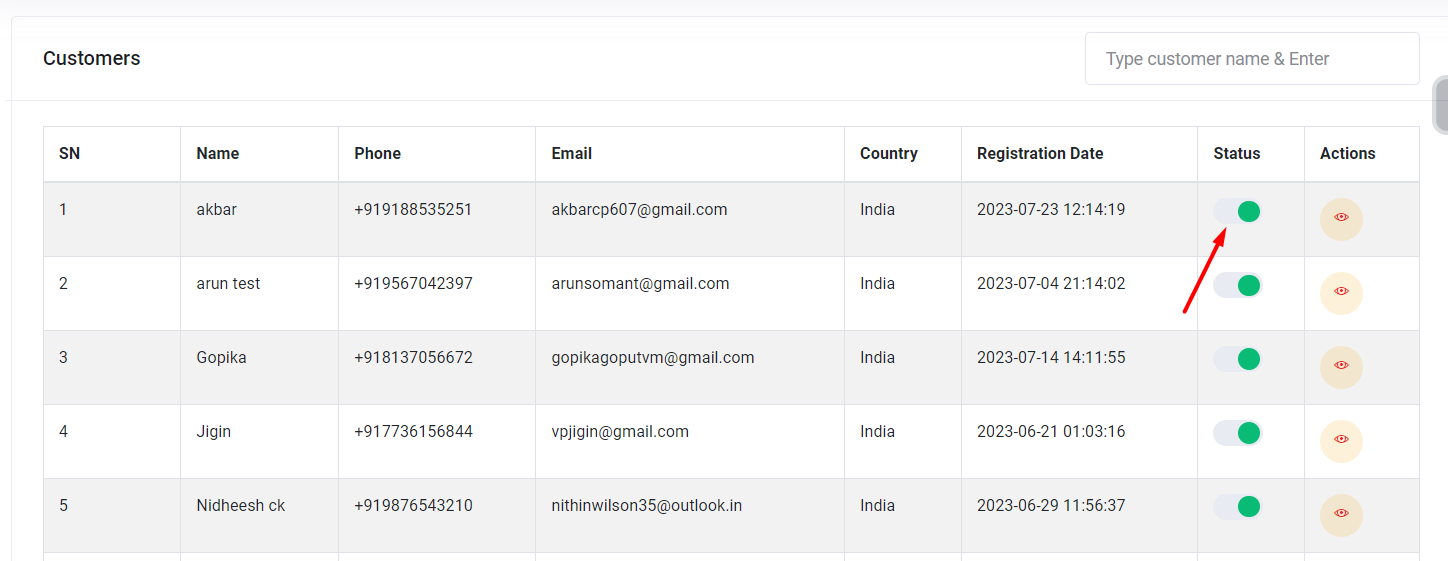
#### **13.3 Status Setting Turn On/Off**
This feature allows administrators to manage customer account statuses. It enables the activation or deactivation of customer accounts, ensuring that administrators can control access as needed. This functionality enhances customer account management within the application, providing a flexible and responsive system.